Markdown Master

For Mac · Native · No subscription

Read. Edit.
Never lose a word.

Open any .md file and read it beautifully — clean typography, syntax-highlighted code, tables, and more. Press ⌘E to edit. Press it again to read. The rest takes care of itself.

Read view Edit mode Snapshot history Export to PDF Dark mode Syntax highlighting

macOS 14 Sonoma or later · Free to try
getting-started.md
Markdown Master read view
Features

Everything you need.
Nothing you don't.

Markdown Master does one thing — read and edit Markdown files — and it does it properly.

Read View

Beautiful rendering,
right out of the box.

Open any .md file and it renders instantly — clean type, proper headings, code that reads like code.

Headings & typography

Six heading levels, clean line-height, proper paragraph spacing. Looks good without any configuration.

Syntax-highlighted code

Fenced code blocks with highlighting for Swift, Python, JavaScript, Bash, JSON, and more.

Tables & task lists

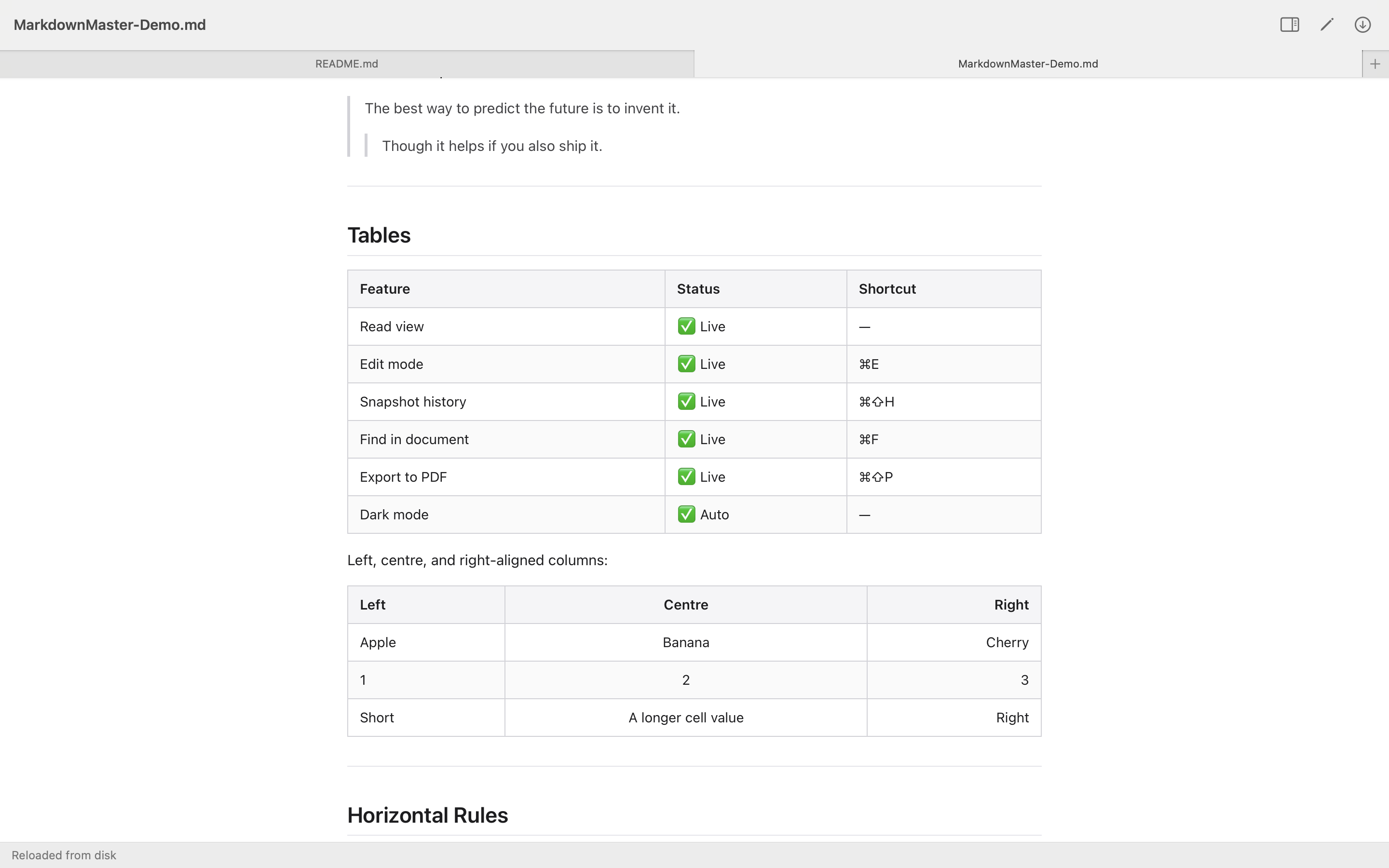
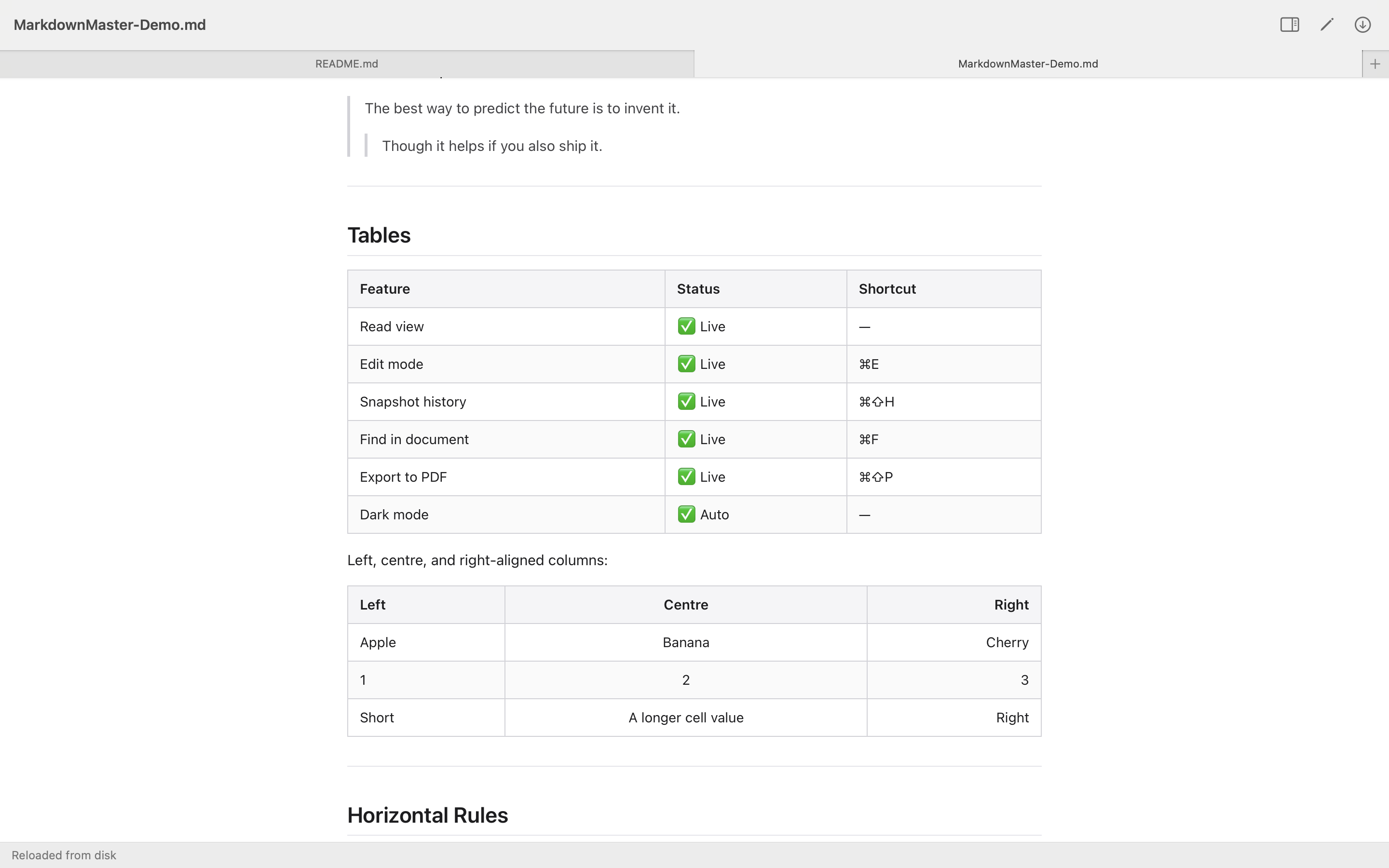
Tables render with zebra striping. Task list checkboxes appear as checkboxes.

YAML front matter

Front matter renders as a collapsible Metadata panel at the top of the document.

notes.md
Markdown Master read view with rendered document
Code & Tables

Technical content,
rendered properly.

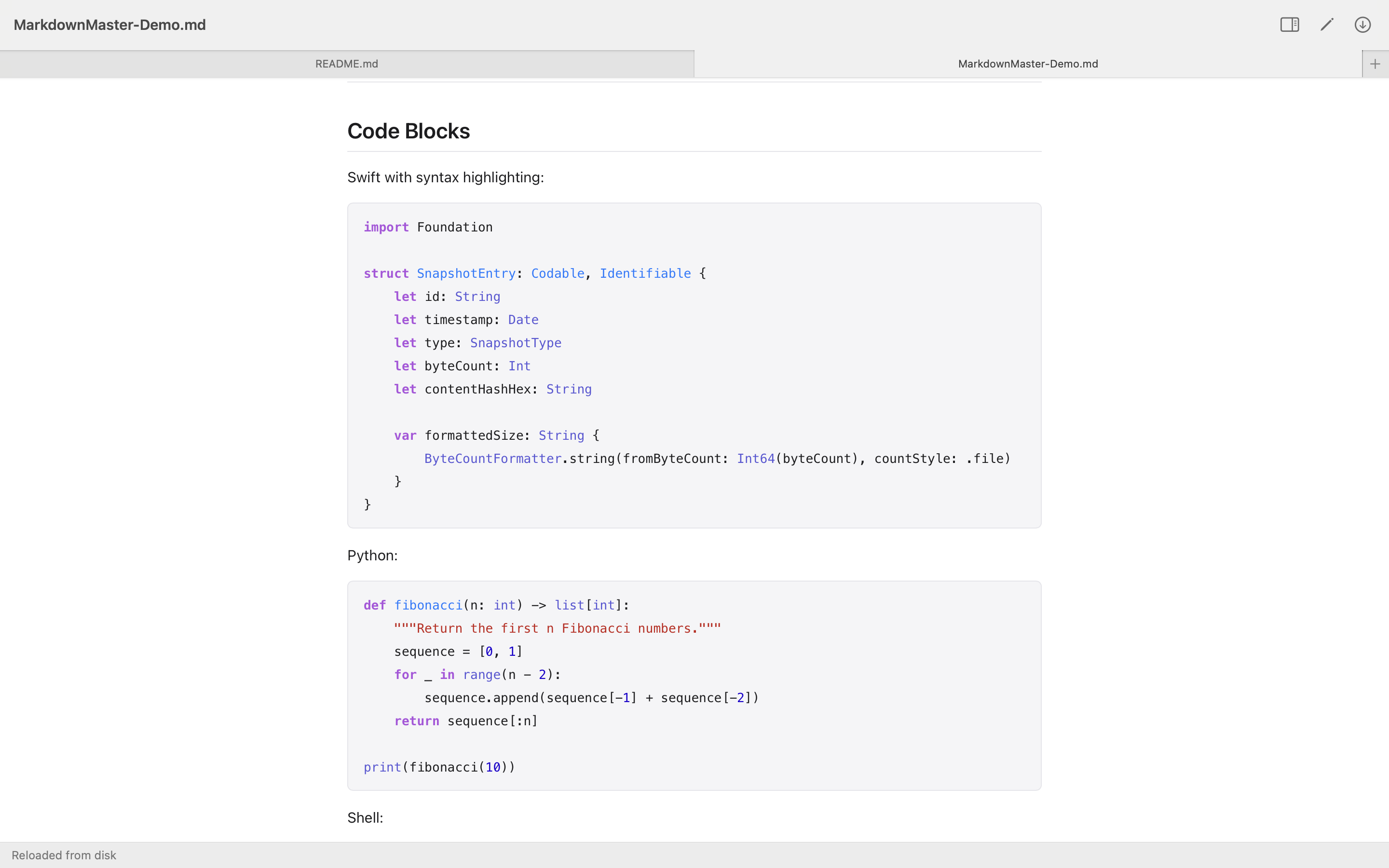
Fenced code blocks render with syntax highlighting. Tables align cleanly. Every Markdown feature you actually use, working exactly as it should.

Syntax highlighting

Swift, Python, Bash, JSON, and more — all rendered with colour, so code reads like code.

Tables that actually align

Left, centre, and right column alignment respected. No layout surprises.

Full CommonMark support

Blockquotes, task lists, strikethrough, inline code, footnotes — the complete spec, not a subset of it.

readme.md — Markdown Master
Markdown Master showing syntax-highlighted code blocks
Edit Mode

One shortcut to edit.
One shortcut back.

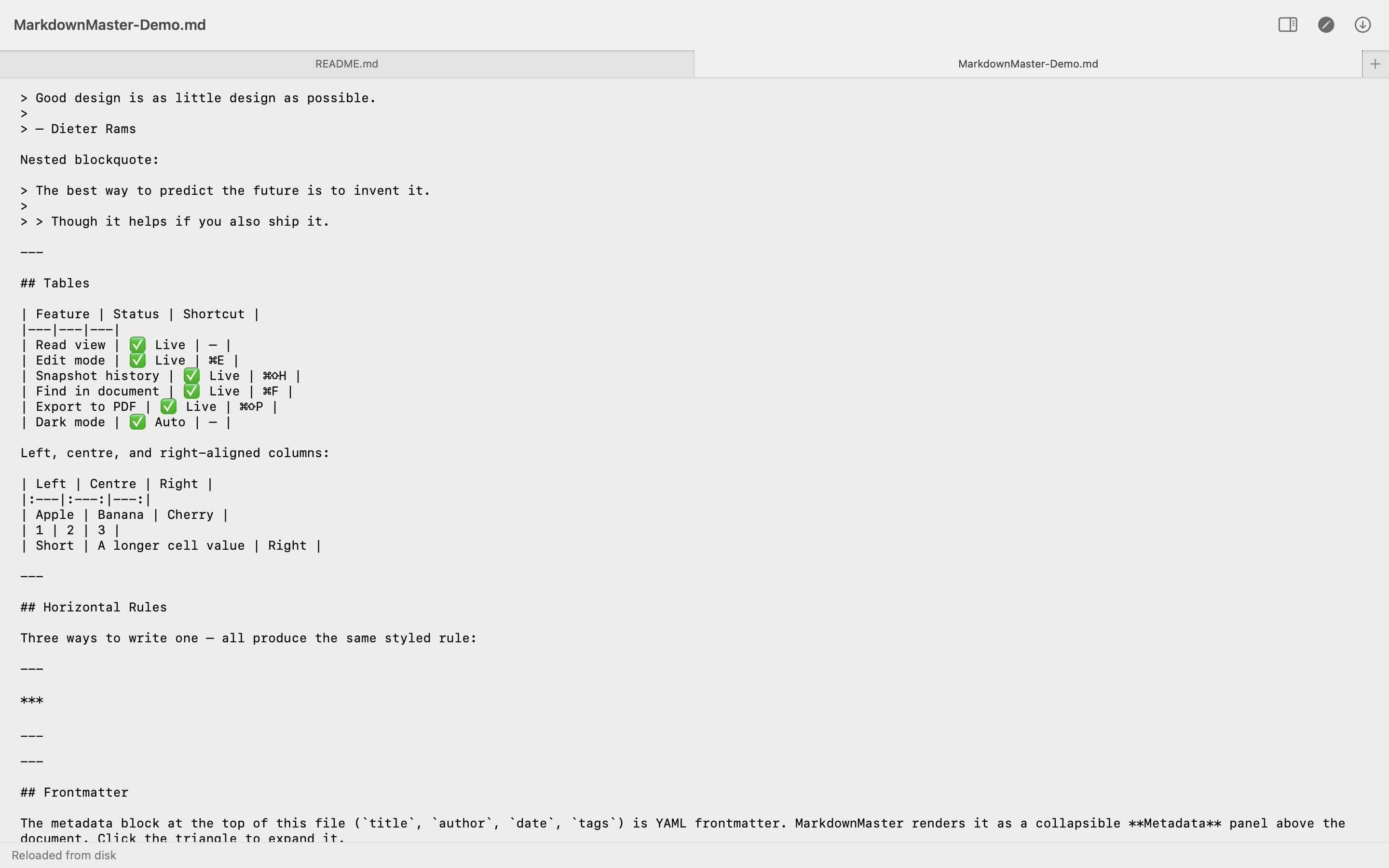
Press ⌘E to switch from the rendered read view to the plain text editor. Press it again when you're done. Both views stay in sync — scroll position included.

⌘E to toggle

Read and edit without switching apps or clicking through preferences.

Scroll sync

Switch from read to edit and the editor opens at the same point in the document. No hunting for your place.

⌘S to save

Standard macOS save. Byte-canonical — the file on disk is exactly what you put in, no encoding changes.

⌘F to find

Search in the read view. Results highlight as you type.

notes.md — Editing
Markdown Master edit mode showing plain text editor
Export to PDF

One shortcut.
Ready to share.

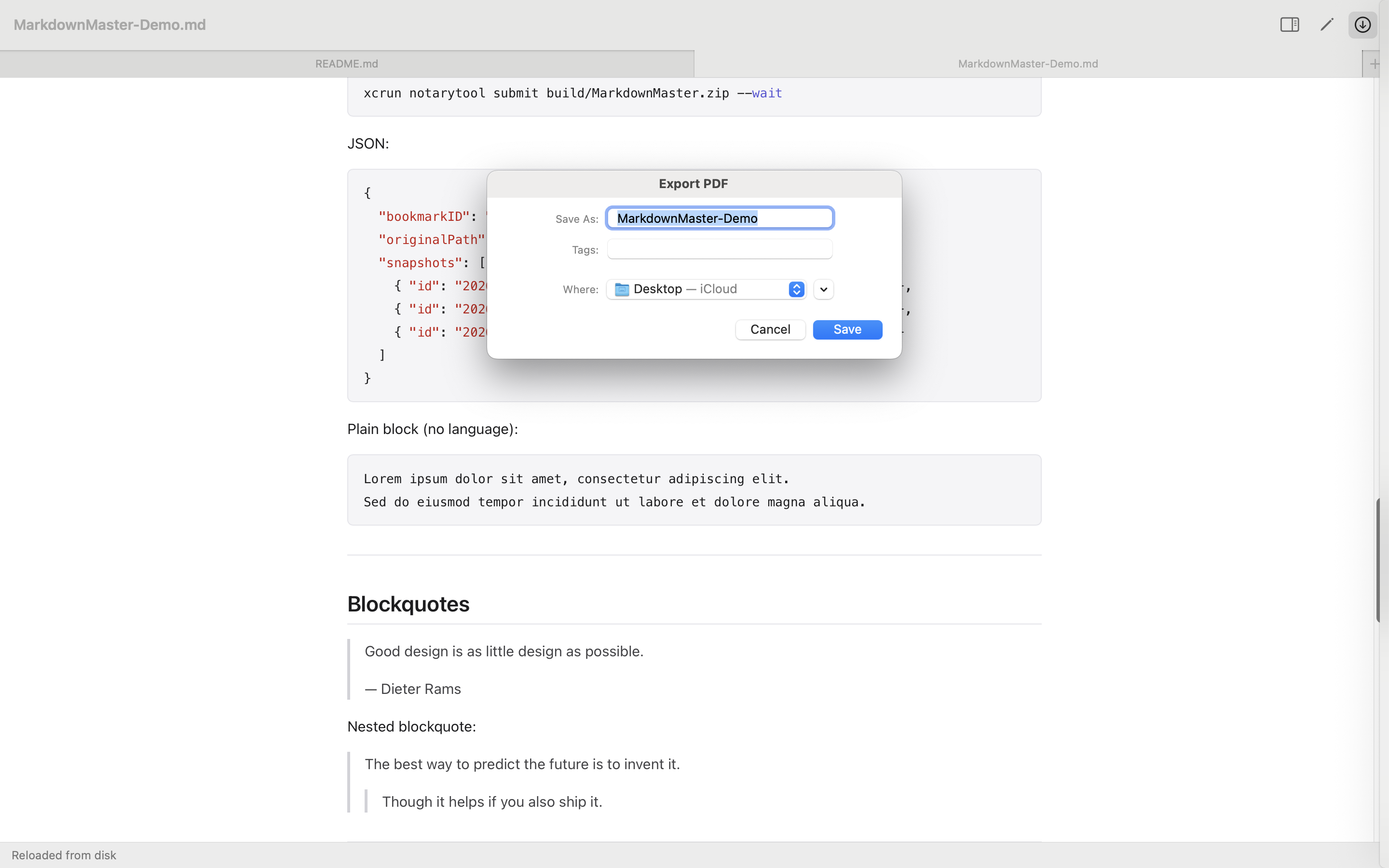
Press ⌘⇧P and your document is a PDF — looking exactly like the read view. No layout settings. No configuration. Just save and send.

Looks like the read view

What you see is what you get — the same clean typography and code highlighting, exported faithfully.

No fuss

Pick where to save it. That's the whole flow.

Export as PDF
Markdown Master export to PDF

Your files never touch our servers.

No account. No cloud upload. Markdown Master reads directly from your file system. Your documents stay where they are — in your folder, on your drive, backed up however you already back them up.

Pricing

Completely free.
No strings attached.

Available on the Mac App Store. Free to download. No in-app purchases, no subscription, no ads.

Free No subscription No in-app purchases No ads Files stay on your Mac
Free on the Mac App Store

Everything included · No account needed

  • Beautiful Markdown read view with syntax highlighting
  • Edit mode with ⌘E toggle and scroll sync
  • Automatic snapshot history — up to 50 versions per file
  • Restore any version in one click
  • Export to PDF with ⌘⇧P
  • Find in document with ⌘F
  • Dark mode — follows your system automatically
  • YAML front matter as collapsible Metadata panel
  • No account · No cloud · Files stay local
Download on the Mac App Store
FAQ

Questions we get a lot

Headings (H1–H6), bold, italic, strikethrough, inline code, fenced code blocks with syntax highlighting (Swift, Python, JavaScript, Bash, JSON, and more), tables with alternating row colours, task lists with checkboxes, blockquotes, horizontal rules, auto-linked URLs, explicit links, and YAML front matter shown as a collapsible Metadata panel.

Every time you edit a file, Markdown Master saves a snapshot every 30 seconds automatically — plus one when you open the file and one on every save. Open the history sidebar with ⌘⇧H and you'll see every version with its timestamp. Click one to restore it. Up to 50 snapshots per file, stored locally on your Mac. No cloud, no account.

No. Markdown Master reads your files directly from wherever they already are on your Mac. Nothing is uploaded. No account is required. Your files stay exactly where you put them — on your drive, in your Dropbox folder, wherever. Snapshot data is stored in your Mac's Application Support folder, locally.

Yes. Press ⌘⇧P (or File → Export as PDF). Your document exports as a PDF that looks exactly like the read view — same typography, same code highlighting. Pick where to save it and you're done.

.md, .markdown, .mdown, and .mkd. You can open files via File → Open, double-clicking in Finder (if Markdown Master is set as default), or dragging a file onto the app in the Dock.

⌘E — Toggle edit / read
⌘S — Save
⌘⇧H — Show / hide history sidebar
⌘⇧P — Export to PDF
⌘F — Find in document
⌘O — Open a file
⌘W — Close window

macOS 14 Sonoma or later.

Get in touch

We're here if you need us

Got a question, found a bug, or have an idea for the app? Drop us a message — we get back within one working day.

Send us a message

Message sent!
We'll get back to you within one working day.